Usage
Master Data Setup
The feature can be toggled per:
- Customer / Ship-to Address — controls behavior on sales documents
- Vendor / Order Address — controls behavior on purchase documents
- Document Header — override per individual sales or purchase document
Inheritance hierarchy:
- Sales: Ship-to Address → Customer → Setup default
- Purchase: Order Address → Vendor → Setup default
Item Setup
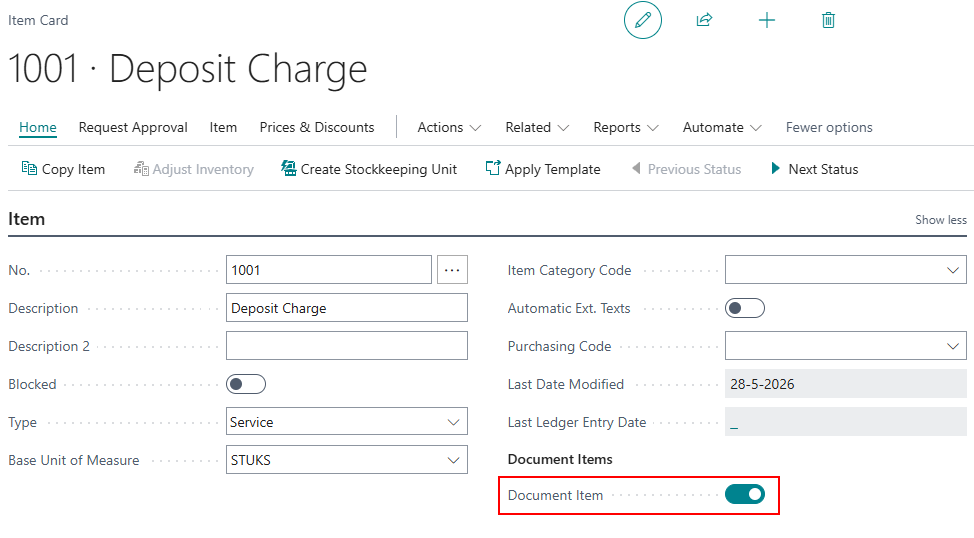
Items must be marked as a Document Item (checkbox on the Item Card) before they can be used as automatically added lines in documents. This prevents circular references and clearly distinguishes regular items from document items.
Document Item Definitions
You can add a Automatic Item Line to an item via the Document Items page:
| Field | Description |
|---|---|
| Item No. | The source/trigger item |
| Unit of Measure Code | The specific UoM for which this mapping applies |
| Document Item No. | The item to be automatically added (must be marked as Document Item) |
| Qty. per Unit of Measure | Quantity ratio (e.g., 1 source = 2 document items) |
| Minimum Quantity | Minimum source quantity required to trigger the document item |
| Rounding Type | Nearest, Up, or Down |
| Rounding Precision | Decimal precision for quantity rounding |
Multiple items can be defined per item/UoM combination.
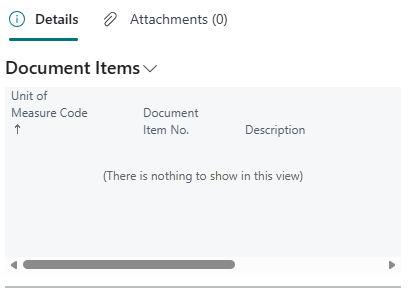
On the item card, you have a direct overview using the Document Items factbox:
The following item types are supported as Document Items:
- Inventory
- Service
- Non-Inventory
Sales Document Integration
Automatic Insertion
When a sales line is inserted with an item that has document item mappings:
- The system validates that the feature is enabled by checking the boolean Apply Document Item Lines in the Sales Header.
- All matching document item mappings are retrieved for the entered item line (filtered by item, UoM, and minimum quantity).
- For each mapping, a new sales line is created with:
- Calculated quantity based on the ratio and rounding rules
- Location from the default location setting (when enabled in the Auto Add Item Lines Setup) or the source line
- Same shipment/delivery dates as the source line
- A shared entry number linking it to the source line
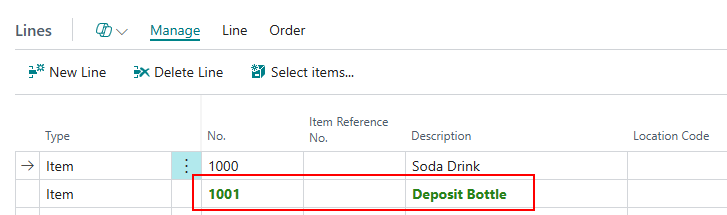
In the Auto Add Item Lines sales lines the style of most of the fields is favorable.
Automatic Updates
When the source line is modified:
- Item, UoM, or Location changes: All document item lines are deleted and recreated.
- Quantity changes: Document item quantities are recalculated proportionally.
- Date changes: Dates are synchronized to document item lines.
Document item lines are protected from direct user editing of key fields for the functionality.
Disconnection
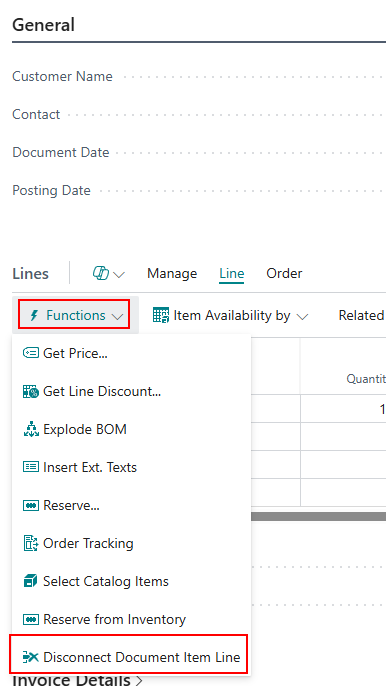
Users can manually disconnect document item lines from their source. This removes the link and allows independent editing or deletion of the lines. To do this, click Functions | Disconnect Document Item Line. When doing this, a confirmation dialog is shown before disconnecting.
Copy Document / Get Shipment
- Copy Document: Orphaned document item lines (where the source was not copied) are automatically disconnected.
- Get Shipment / Combine Shipments: Entry numbers are renumbered to avoid conflicts when combining lines from multiple shipments.
Purchase Document Integration
Purchase documents follow the same logic as sales with one addition: Requisition Worksheet → Purchase Order: When requisition lines are converted to purchase orders, document items are automatically added to the created order lines.
Warehouse Integration
The extension integrates with warehouse management:
- Warehouse Receipt/Shipment lines carry document item fields for traceability.
- Selection pages allow users to choose which document items to include in warehouse operations.
- Quantity protection prevents editing document item quantities on warehouse lines.
- Default location support ensures document items are created at the configured warehouse location.
Undo Shipment / Receipt
When undoing a posted shipment or receipt:
- The system validates that the entire group (source line + all document item lines) is being undone together.
- If only part of the group is selected, the user is prompted to either undo all related lines or disconnect them first.
This prevents orphaned or inconsistent posted entries.
Auto Add Item Lines in Item Journals
When you are posting a positive or negative adjustment using the Item Journals, it's possible to also post the connected Auto Add Item Lines for the chosen product. To do so, enable the boolean Item Journals on the Auto Add Item Lines Setup page.
Example scenario
For example in the following situation, we sell soda drink per bottle and per crate of 12 bottles. We need to charge deposit on sold items and crates. Selling per bottle has different deposit charges then selling per crate. By selling per bottle, we only want to charge 1x item 1001 per sold bottle. But selling per crate comes with 12x item 1001 (because of the 12 bottles) and 1x item 1002 (for the crate). The setup of the Document Items is as follows:
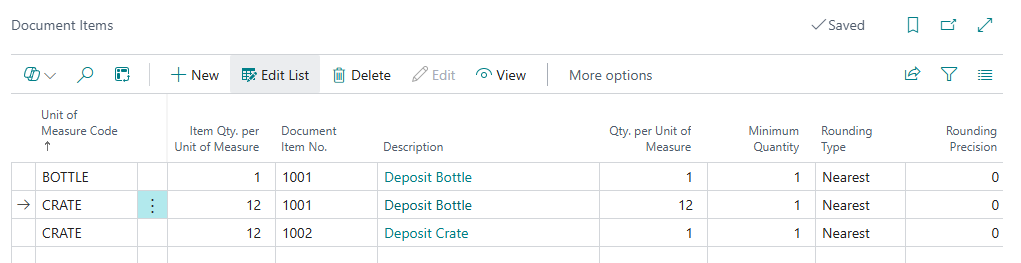
When I create a sales order for item 1000 and the Apply Document Item Lines in the Sales Header is enabeld, the system automatically adds the Document Items. In the first image I enter 2 bottles of Soda Drink (item 1000):

As you can see, 2 pieces of item 1001 are added as deposit.
In the second example, I create a sales order for 2 crates of Soda (unit of measure is CRATE). As you can see now, the Auto Add Items Lines are different, based on the setup we did on the item card:
